Installation
Notice! A SendCloud account is required to use this extension. You can request one for free here.
1. Download the SendCloud Extension
The easiest way to to get the module is to get it from the OpenCart extension store:
- Dutch OpenCart Specialist (OpenCart module support):
- https://www.comercia.nl
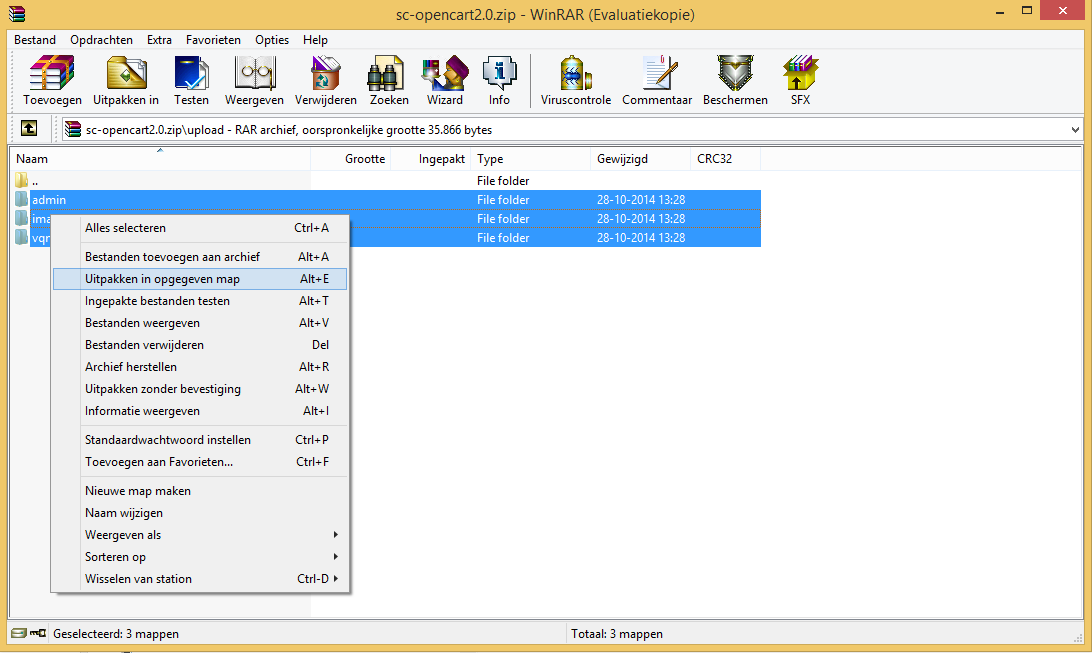
3. Installing vQmod
If you’ve already installed vQmod you can skip this step and go to step 4.
- Download latest version of vQmod for OpenCart from GitHub.
- https://github.com/vqmod/vqmod/releases
- The easiest way to install vQmod is with this instruction video.
- http://youtu.be/ezS1jWoMmjc
- Or follow this guide on GitHub.
- https://github.com/vqmod/vqmod/wiki/Installing-vQmod-on-OpenCart
4. Upload the SendCloud Extension
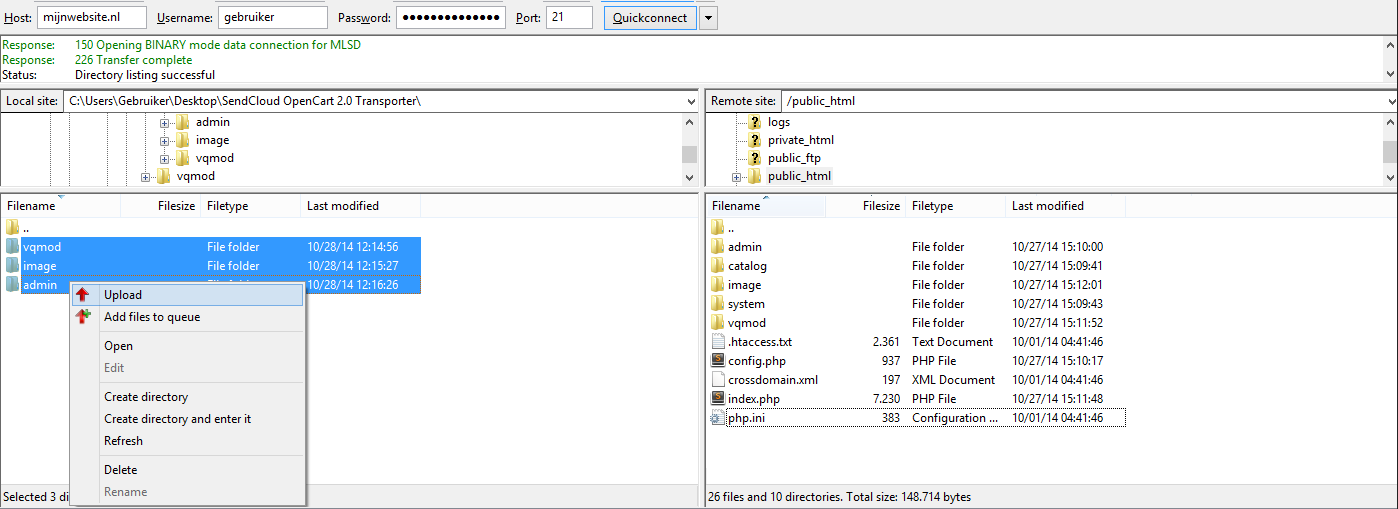
Connect to your website with your favorite FTP client. If you don’t have any you can use FileZilla.
Upload the files from the upload folder from the extension package to your website.
5. Get SendCloud API keys
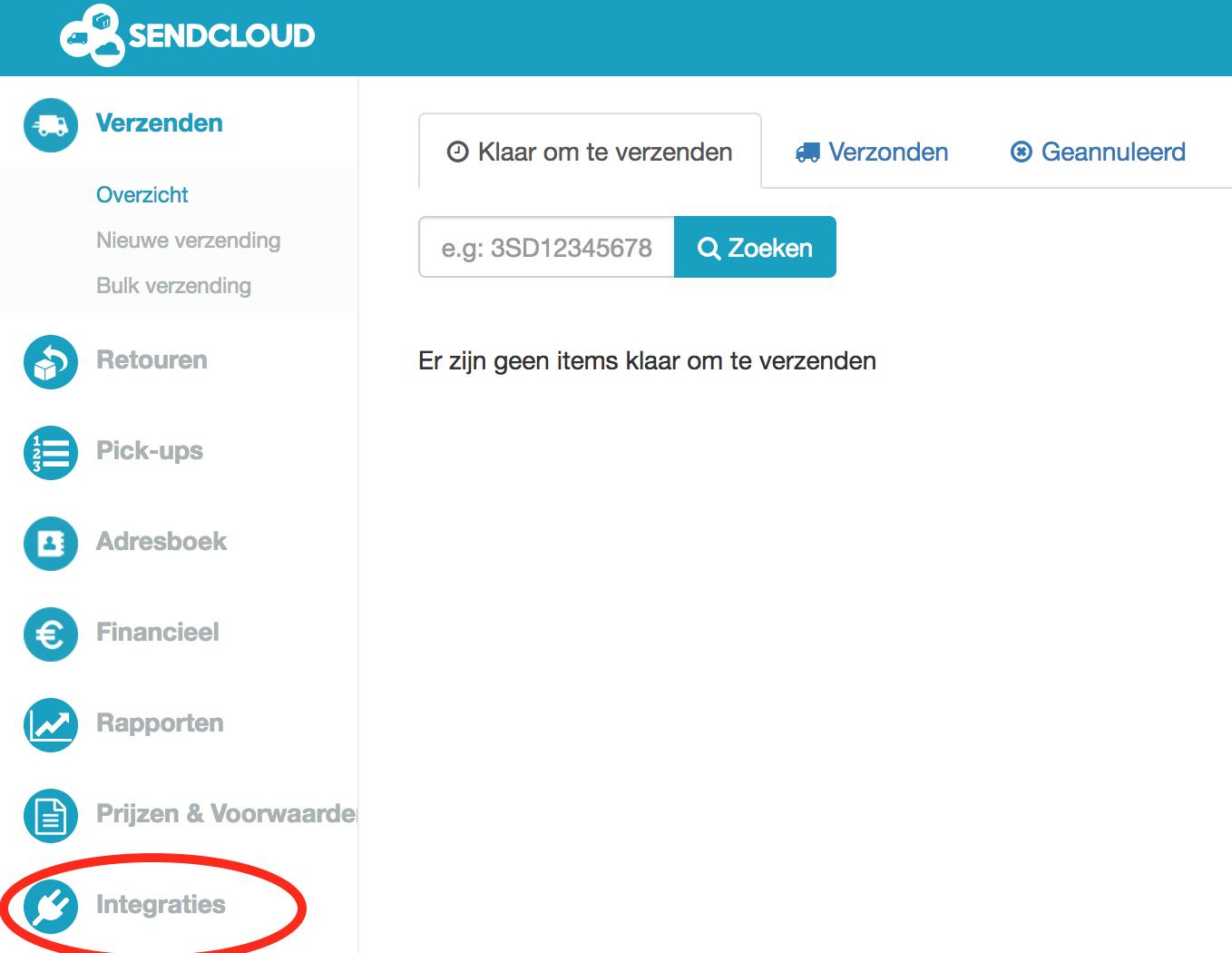
Login on the SendCloud Panel with your SendCloud account. Choose Integraties.
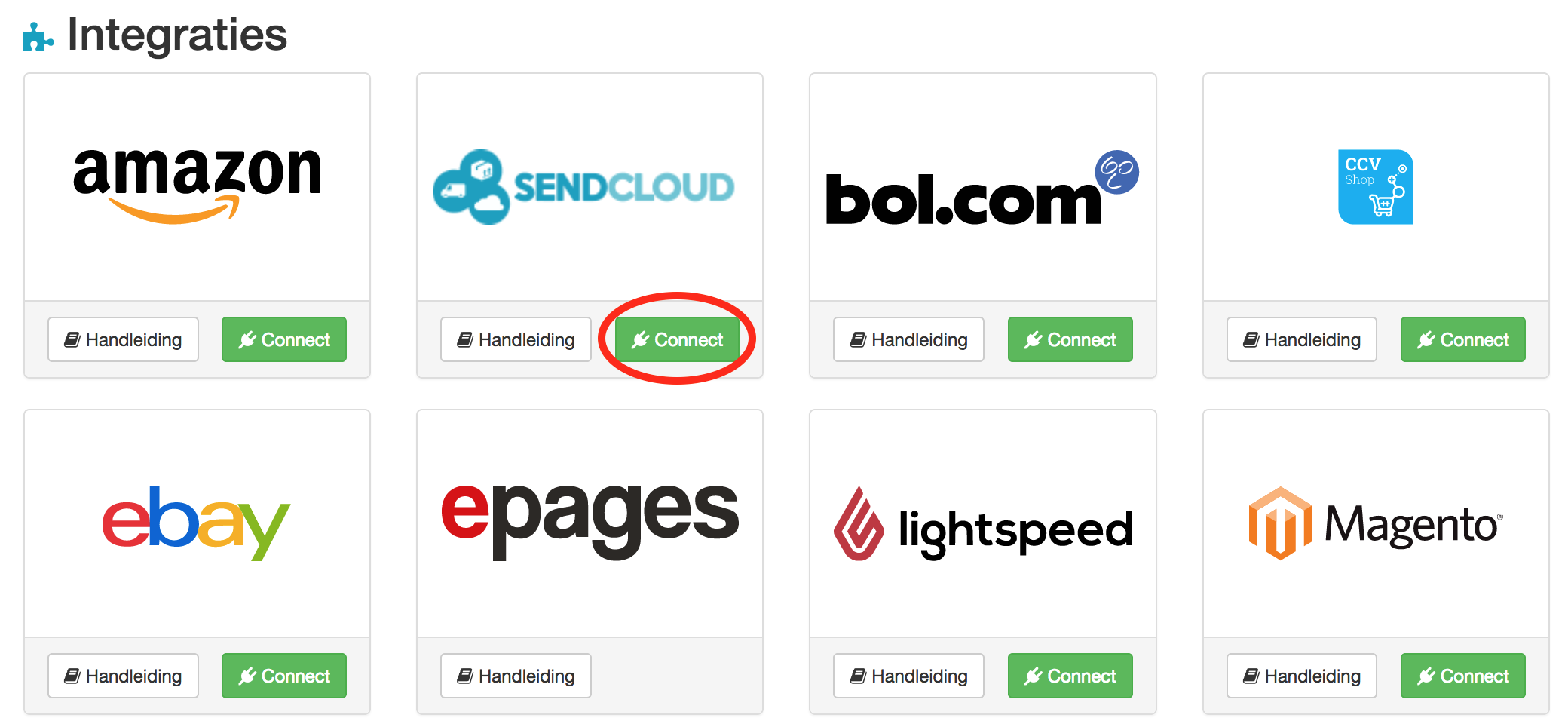
From the overview page that comes up, click the Connect button underneath the SendCloud logo.
On the next screen, type in a name for your integration, for example “OpenCart” or the name of your webshop. The API keys will be automatically generated after you press Save.

Copy your public and secret key.
6. Activate the SendCloud Extension
Login to the OpenCart admin area. Go to Extensions -> Modules and click on the green button from the SendCloud Extension.

The SendCloud Extension is activated.
7. Setup the SendCloud Extension
Click on the blue edit button.

Insert your API public & secret key. Choose your order state and save the settings.